Learning how to merge files in SPSS is important when your data are saved in separate files and you need one complete dataset for analysis. This often happens when researchers collect survey data in different waves, receive files from different groups, store demographic data separately from outcome scores, or combine information from Excel, CSV, and SPSS files.
SPSS merging can look simple, but the wrong choice can damage the dataset. If you use Add Cases when you should use Add Variables, you may create duplicated rows. If you use Add Variables without a clean ID variable, SPSS may match records incorrectly or create unexpected missing values. A file may appear merged, but the analysis can become unreliable if the merge was not checked properly.
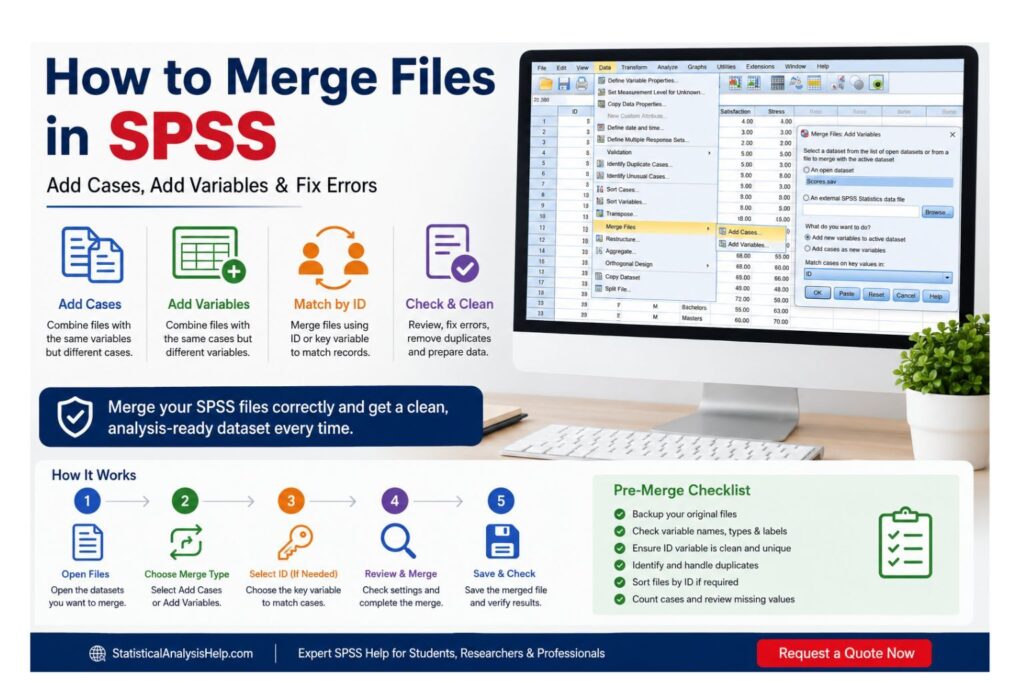
SPSS provides two main ways to merge files: Add Cases and Add Variables. Add Cases is used when files have the same variables but different cases. Add Variables is used when files have the same cases but different variables. For Add Variables, a clean ID or key variable is usually needed so SPSS knows which records belong together.
At StatisticalAnalysisHelp.com, we help students, dissertation researchers, thesis writers, survey researchers, healthcare researchers, public health researchers, social science researchers, and business analysts merge SPSS files correctly. We can help clean ID variables, fix duplicate records, combine Excel or CSV files, prepare SPSS syntax, check unmatched cases, and make your dataset ready for analysis.
Need Help Merging SPSS Files? Request a Quote Now
Send your SPSS files, Excel files, CSV files, ID variable, variable list, survey files, questionnaire data, supervisor comments, or analysis instructions. StatisticalAnalysisHelp.com can help merge files, clean variables, match cases, fix duplicate IDs, resolve unmatched records, prepare syntax, and check the final dataset.
Request a Quote Now if you want your SPSS files merged, cleaned, checked, and prepared for analysis.
Quick Answer: How Do You Merge Files in SPSS?
You merge files in SPSS by going to Data > Merge Files and choosing either Add Cases or Add Variables. Use Add Cases when you want to add more rows. Use Add Variables when you want to add more columns by matching records across files.
| Merge Type | Use When | Example | SPSS Menu |
|---|---|---|---|
| Add Cases | Same variables, different cases | January survey + February survey | Data > Merge Files > Add Cases |
| Add Variables | Same cases, different variables | Demographics file + test scores file | Data > Merge Files > Add Variables |
Add Cases is best when the files have the same structure. Add Variables is best when the files contain different information about the same participants, students, patients, respondents, customers, organizations, or records.
For Add Variables, SPSS usually needs an ID or key variable. The ID variable tells SPSS which record in one file matches a record in another file. If the ID variable is missing, duplicated, or formatted differently, the merge may produce wrong matches or missing values.
Unsure whether to use Add Cases or Add Variables? Send your files for a quick merge review and Request a Quote Now.
What Does It Mean to Merge Files in SPSS?
SPSS datasets are arranged in rows and columns. Rows usually represent cases, such as participants, students, patients, survey respondents, customers, households, companies, or observations. Columns represent variables, such as age, gender, income, test scores, scale items, satisfaction ratings, clinical measurements, or outcome measures.
Merging files means combining two or more datasets into one working dataset. The correct method depends on whether you are adding rows or adding columns.
If File A has 100 survey respondents from Group 1 and File B has 80 survey respondents from Group 2, and both files contain the same variables, you are adding cases. The final file should have 180 rows if no records are excluded.
If File A has demographic variables for 200 participants and File B has test scores for the same 200 participants, you are adding variables. The final file should usually still have 200 rows, but it should contain more columns.
The purpose of merging is to create one clean dataset for descriptive statistics, hypothesis testing, regression analysis, survey analysis, dissertation results, thesis reporting, or other statistical procedures.
Add Cases vs Add Variables in SPSS
The most important decision when merging SPSS files is choosing between Add Cases and Add Variables. Many errors happen because users select the wrong merge option.
Add Cases appends rows. Add Variables adds columns. Add Cases is suitable when two files contain different cases but the same variables. Add Variables is suitable when two files contain the same cases but different variables.
| Feature | Add Cases | Add Variables |
|---|---|---|
| What it adds | Rows/cases | Columns/variables |
| Best for | Combining groups, waves, batches, or sites | Matching extra information to existing cases |
| Requires same variables? | Usually yes | No |
| Requires same cases? | No | Usually yes |
| Requires ID variable? | Usually no | Usually yes |
| Main risk | Mismatched variable names, labels, or formats | Wrong matches, duplicate IDs, unmatched records |
| Example | Merge two survey groups | Merge demographics and outcome scores |
Use Add Cases when you have files with the same questionnaire or variable structure but different respondents. Use Add Variables when each file contains a different part of the same dataset and needs to be matched by participant ID, student ID, patient ID, respondent ID, customer ID, or another key variable.
Choosing the wrong option can create a dataset that looks complete but is not accurate. That is why every merge should be planned, checked, and saved under a new file name.
Before You Merge Files in SPSS: Preparation Checklist
A clean merge starts before you click the SPSS merge command. Many SPSS merge errors happen because the files were not prepared properly.
Before merging, check the following:
- Back up the original files.
- Confirm whether you need Add Cases or Add Variables.
- Check that files are in SPSS .sav format or imported correctly.
- Review variable names.
- Review variable labels.
- Review value labels.
- Check variable types, such as numeric versus string.
- Check variable width and decimals.
- Review missing value codes.
- Check ID variables.
- Identify duplicate IDs.
- Check whether files need sorting.
- Count the cases in each file.
- Save the merged dataset under a new name.
Variable names matter because SPSS uses them to identify variables. If one file uses gender and another uses sex, SPSS may treat them as different variables even if they measure the same concept. Before merging, decide whether those variables should be renamed, paired, or kept separate.
Variable type also matters. A numeric ID in one file may not match a string ID in another file. Value labels can also create problems. For example, one file may code gender as 1 = Male and 2 = Female, while another may code 1 = Female and 2 = Male. If this is not corrected, the merged dataset may produce misleading results.
Missing value codes should also be consistent. If one file uses 99 for missing values and another uses blank cells, the merged dataset may need cleaning before analysis.
If your files have inconsistent variable names, missing IDs, duplicate records, or unclear coding, Request a Quote Now for SPSS merge cleanup support.
How to Merge Files in SPSS Using Add Cases
Use Add Cases when two or more files contain the same variables but different cases. This is common when survey data are collected from different groups, classes, clinics, departments, sites, batches, or time periods.
Example:
- File 1 contains survey responses from Campus A.
- File 2 contains survey responses from Campus B.
- Both files contain age, gender, satisfaction, stress, and performance variables.
- Add Cases combines the rows into one dataset.
Steps to merge files using Add Cases:
- Open the first dataset in SPSS.
- Go to Data > Merge Files > Add Cases.
- Select the second open dataset or browse for the external SPSS file.
- Review the variables in the new active dataset.
- Check unpaired variables.
- Pair variables that represent the same concept, if appropriate.
- Review variable types, labels, and formats.
- Click OK.
- Check the number of cases in the merged file.
- Save the merged dataset with a new filename.
Unpaired variables are variables that appear in one file but not the other. They are not always wrong. Sometimes one file has extra variables that should remain missing for cases from the other file. However, unpaired variables should never be ignored.
If two variables represent the same item but have different names, they may need to be renamed or paired before merging. For example, age_years in one file and age in another file may represent the same variable, but you should confirm that both variables have the same coding, type, and meaning.
Do not pair variables only because they look similar. Confirm that they measure the same concept and use compatible formats.
After merging, check the case count. If File 1 had 120 cases and File 2 had 80 cases, the merged file should usually have 200 cases unless duplicates or exclusions were handled intentionally.
How to Merge Files in SPSS Using Add Variables
Use Add Variables when two files contain the same cases but different variables. This is common when demographic information is stored in one file and outcome scores, test results, clinical measurements, survey scale scores, or follow-up data are stored in another file.
Example:
- File 1 contains participant ID, age, gender, and education.
- File 2 contains participant ID, anxiety score, depression score, and stress score.
- Add Variables matches records by participant ID and adds the score variables to the demographic file.
Steps to merge files using Add Variables:
- Open the main dataset in SPSS.
- Make sure both files have a matching ID variable.
- Check that ID variables have the same format in both files.
- Go to Data > Merge Files > Add Variables.
- Select the second open dataset or browse for the external file.
- Choose a one-to-one merge based on key values when appropriate.
- Select or confirm the key variable.
- Sort files by key values if SPSS requires it.
- Review included and excluded variables.
- Click OK.
- Check whether cases matched correctly.
- Save the merged dataset with a new filename.
The ID variable is the most important part of an Add Variables merge. It tells SPSS which record in one file matches which record in another file.
Good ID variables include:
- participant_id
- student_id
- patient_id
- respondent_id
- household_id
- company_id
- clinic_id
Names, emails, phone numbers, or manually typed labels may not be safe key variables unless they are cleaned and standardized. Small differences such as extra spaces, spelling errors, missing leading zeros, or inconsistent capitalization can stop records from matching correctly.
How to Merge SPSS Files by ID Variable
A key variable is the variable SPSS uses to align records during a match merge. In most Add Variables merges, the key variable must identify the same person, participant, case, organization, or unit in both files.
For one-to-one merges, the ID variable should usually be unique in each file. If duplicate IDs exist, SPSS may produce unexpected results. Duplicate IDs may be errors, but they may also represent repeated measurements, multiple visits, multiple transactions, or multiple observations per person.
| ID Problem | What Happens | How to Fix |
|---|---|---|
| ID is numeric in one file and string in another | Cases may not match | Convert the ID type before merging |
| IDs have extra spaces | Matching may fail | Trim or clean ID values |
| Duplicate IDs | Wrong or repeated matches may occur | Identify and resolve duplicates |
| Missing IDs | Cases cannot be matched | Recover or exclude missing IDs carefully |
| Different ID formats | Matching may fail | Standardize the ID structure |
Leading zeros are a common problem. For example, an ID such as 00125 may become 125 if imported from Excel as a numeric variable. If the second file stores the ID as 00125, SPSS may not match the records correctly.
Before merging by ID, check duplicates and missing values. You can use Frequencies, Sort Cases, Identify Duplicate Cases, or syntax to inspect ID quality.
If your merge depends on ID matching and you are not sure whether the IDs are clean, Request a Quote Now before merging the files.
How to Check Your SPSS File After Merging
Checking the merged file is essential. Never assume the merge worked correctly just because SPSS produced a new dataset.
After merging, check:
- Expected and actual number of cases.
- Expected and actual number of variables.
- ID variable values.
- Frequency tables for key categorical variables.
- Descriptive statistics for numeric variables.
- Missing values.
- Duplicate IDs.
- A few manually matched records.
- Variable labels.
- Value labels.
- Variable types.
- Whether the original files remain unchanged.
- Whether the merged file has been saved under a new name.
If File A had 150 cases and File B had 200 new cases with the same variables, an Add Cases merge should produce 350 cases unless records were intentionally excluded.
For Add Variables, the number of cases may stay the same if all records match, but the number of variables should increase. If the number of cases changes unexpectedly, check the matching settings, duplicate IDs, missing IDs, and unmatched records.
Post-merge checking protects the rest of the analysis. It is better to find a merge problem before running descriptive statistics, regression, ANOVA, factor analysis, or dissertation results.
Common SPSS Merge Errors and How to Fix Them
SPSS merge errors are common when files come from different sources, survey exports, Excel sheets, departments, waves, or manually edited datasets.
| Problem | Likely Cause | Fix |
|---|---|---|
| Variables have different names | Same item named differently across files | Rename variables before merging or pair them carefully |
| Variables have the same names but different meanings | Reused variable names across files | Rename one variable before merging |
| Variable types do not match | Numeric in one file, string in another | Convert variable type before merging |
| Numeric ID in one file and string ID in another | Different import settings | Standardize ID type |
| Duplicate ID values | Same ID appears more than once | Identify duplicates and decide whether they are valid |
| Missing ID values | Records lack matching keys | Recover IDs or exclude carefully |
| Cases do not match | ID formats differ or files are not sorted | Clean IDs and sort by key variable |
| Value labels differ | Coding differs across files | Standardize value labels before merging |
| SPSS creates unexpected missing values | Unmatched records or unpaired variables | Review merge settings and variable pairing |
| Wrong merge option used | Add Cases used instead of Add Variables, or the reverse | Recheck file structure and rerun correctly |
| Merged file overwrote original | File saved incorrectly | Restore backup and save merged file separately |
| Excel import changed formats | IDs, dates, or strings imported incorrectly | Fix import settings and save as .sav before merging |
One of the most serious errors happens when variables have the same name but different meanings. SPSS may treat them as the same variable even though they represent different information. Always check variable labels, value labels, and coding before merging.
Another common error occurs when Add Variables creates many missing values. This usually means cases did not match correctly. The cause may be duplicate IDs, missing IDs, different ID formats, leading zeros, or spaces in string IDs.
If your SPSS merge created missing values, duplicate cases, or unmatched records, Request a Quote Now for file repair and merge troubleshooting.
SPSS Syntax for Merging Files
SPSS syntax is useful when you need to document, repeat, or review a merge. It is also helpful when multiple files need to be combined or when a supervisor, reviewer, or team member wants a clear record of how the data were prepared.
A simple Add Cases syntax structure may look like this:
ADD FILES
  /FILE='C:\Data\wave1.sav'
  /FILE='C:\Data\wave2.sav'.
EXECUTE.
A simple Add Variables merge by ID may look like this:
SORT CASES BY participant_id.
MATCH FILES
  /FILE='C:\Data\demographics.sav'
  /TABLE='C:\Data\scores.sav'
  /BY participant_id.
EXECUTE.
These examples must be adapted to your file paths, variable names, ID variable, and merge structure. Syntax does not fix an incorrect merge design. If the ID variable is not unique, the files are not sorted properly, or the wrong merge type is selected, the output may still be wrong.
Syntax is not required for every beginner project, but it is useful for reproducibility, documentation, and large data preparation tasks.
Merging SPSS Files from Excel or CSV Sources
Many users receive data in Excel or CSV format before importing it into SPSS. These files should be checked carefully before merging.
Before importing Excel or CSV files into SPSS:
- Check column names.
- Avoid blank rows above headers.
- Keep ID columns consistent.
- Make sure numeric variables import as numeric.
- Check date formats.
- Check text variables.
- Verify value coding.
- Save imported files as .sav before merging.
- Review Variable View after import.
Common Excel-to-SPSS problems include missing leading zeros in IDs, changed date formats, numeric variables imported as strings, text responses imported as long string variables, and column names converted into invalid SPSS variable names.
For example, Excel may treat participant ID 00045 as 45. If another file stores the same ID as 00045, the SPSS merge may fail. This should be corrected before attempting Add Variables.
If your files come from survey platforms, online forms, Excel sheets, or CSV exports, data preparation may take more time than the actual merge.
Add Cases Example: Combining Survey Waves
Suppose a researcher collects the same questionnaire in Wave 1 and Wave 2. Both files contain the same variables: respondent ID, age, gender, satisfaction, stress, and performance. However, the files contain different respondents.
This requires Add Cases because the researcher is stacking rows from Wave 2 under rows from Wave 1.
Before merging, the researcher should check that variable names and coding are consistent. If Wave 1 uses satisfaction_total and Wave 2 uses satisfaction_score, the variable names should be standardized. If gender is coded differently across waves, the coding should be corrected before merging.
A useful step is to create a source variable before merging. For example, add wave = 1 in the first file and wave = 2 in the second file. This makes it possible to identify which cases came from each wave after the merge.
After merging, the researcher should check the total number of cases and run Frequencies by wave. This confirms whether both waves were included correctly.
Add Variables Example: Combining Demographics and Test Scores
Suppose a researcher has two files. The first file contains participant ID, age, gender, and education. The second file contains participant ID, anxiety score, depression score, and stress score. The same participants appear in both files.
This requires Add Variables because the researcher is adding columns to the same cases.
Before merging, the participant ID must be checked in both files. The ID should be unique, complete, and formatted the same way. If one file has duplicate participant IDs, the researcher must determine whether they are errors or repeated records.
After merging, the researcher should check whether the new score variables appear in the final dataset. A few matched records should be inspected manually to confirm that scores were added to the correct participants.
If the ID variable is not unique, the merge may attach scores incorrectly. This can seriously affect the final analysis.
Many-to-One and One-to-Many Merge Issues in SPSS
Some SPSS merge projects are more complex than simple Add Cases or one-to-one Add Variables merges. These include many-to-one and one-to-many structures.
A one-to-one merge means each ID appears once in each file. For example, one participant has one demographic record and one test score record.
A many-to-one merge means multiple records in one file match one record in another file. For example, many students may belong to one school, and a student-level file may need to be merged with a school-level file.
A one-to-many merge means one record in one file matches several records in another file. For example, one patient may have multiple clinic visits.
Repeated measurements, classroom-level data, household data, clinic records, company-level variables, transaction records, and time-point data require careful planning. A simple merge may not be correct if the data structure is unclear.
If your dataset has repeated IDs, multiple visits, classrooms, households, clinics, organizations, or time points, Request a Quote Now for help choosing the correct merge structure.
Best Practices for Merging Files in SPSS
A clean SPSS merge depends on planning, preparation, and validation. Use these best practices before and after merging:
- Keep copies of original files.
- Clean variable names first.
- Standardize ID formats.
- Check duplicate IDs.
- Use source variables when combining waves or groups.
- Save syntax when possible.
- Document merge decisions.
- Review unmatched cases.
- Validate the merged results.
- Use clear filenames.
- Avoid overwriting original data.
- Ask for help before merging complex files.
A good merge should be traceable. You should know which files were merged, which method was used, what key variable was used, which cases did not match, and whether any variables were renamed, excluded, or recoded.
How We Help With SPSS File Merging
StatisticalAnalysisHelp.com helps with SPSS file merging, data cleaning, and dataset preparation for academic, research, business, healthcare, public health, and survey projects.
We can help with:
- Merging SPSS files.
- Combining survey waves.
- Adding cases.
- Adding variables.
- Matching datasets by ID.
- Cleaning ID variables.
- Fixing duplicate records.
- Handling unmatched cases.
- Importing Excel or CSV files before merging.
- Preparing SPSS syntax.
- Checking merged files.
- Preparing data for analysis.
- Documenting merge steps.
- Correcting supervisor feedback.
- Preparing datasets for dissertation or thesis analysis.
The goal is to create a clean, analysis-ready dataset and explain what was done. This is useful when your dataset will be used for descriptive statistics, hypothesis testing, regression analysis, survey analysis, factor analysis, or dissertation results.
Request a Quote Now for SPSS file merging, data cleaning, or dataset preparation help.
Pricing for SPSS File Merging Help
Pricing for SPSS file merging help is quote-based because merge projects vary. A basic Add Cases merge is usually simpler than a complex multi-file match merge involving duplicate IDs, Excel imports, inconsistent variable names, or repeated-measures data.
The cost depends on the number of files, file formats, number of variables, number of cases, merge type, ID quality, duplicate records, missing data, deadline, and whether data cleaning is needed.
| Service Need | What It May Include | Pricing Basis |
|---|---|---|
| Basic Add Cases merge | Combine files with same variables and different cases | Quote based on number of files and variables |
| Basic Add Variables merge | Add columns from one file to another | Quote based on file structure |
| Merge by ID variable | Match records using participant, student, patient, or customer ID | Quote based on ID quality and match complexity |
| Excel/CSV to SPSS merge preparation | Import, clean, and save files before merging | Quote based on file condition |
| Duplicate ID cleanup | Identify and resolve duplicate keys | Quote based on duplicate volume |
| Complex repeated-measures merge | Merge files with repeated IDs or time points | Custom quote |
| Multi-file SPSS merge | Combine several files into one analysis-ready dataset | Quote based on number of files |
| SPSS syntax for merging | Prepare reusable syntax for merging files | Quote based on workflow |
| Supervisor feedback correction | Fix merge or dataset issues raised in feedback | Quote based on comments |
| Urgent merge support | Faster merge help where possible | Quote based on deadline |
Pricing placeholders:
- Basic SPSS merge help: from $ 50
- Merge by ID and cleanup: from $ 300
- Complex multi-file merge: custom quote
Request a Quote Now by sending your files, merge goal, ID variable, deadline, and required output format.
What You Receive
Depending on your project, you may receive:
- Merged SPSS .sav file.
- Cleaned ID variable where applicable.
- Variable name and label review.
- Add Cases or Add Variables merge.
- Match merge by ID.
- Duplicate ID report.
- Unmatched case review.
- Syntax file where requested.
- Merge summary notes.
- Cleaned Excel or CSV import support where applicable.
- Final dataset ready for analysis.
- Explanation of what was done.
- Revision based on feedback where agreed.
The deliverable depends on the condition of your files and the purpose of the merged dataset. If the data need further analysis, the file can be prepared in a structure suitable for the next statistical step.
Why Trust StatisticalAnalysisHelp.com?
SPSS file merging can affect every analysis that follows. If the merge is wrong, the descriptive statistics, hypothesis tests, regression models, factor analysis, or survey results may also be wrong. That is why file merging should be handled carefully.
StatisticalAnalysisHelp.com supports dissertation, thesis, research, business, healthcare, public health, and survey projects. The service covers SPSS, Excel, CSV, R, Stata, and related dataset preparation workflows. Instead of doing a generic one-click merge, the files are reviewed for structure, IDs, variable names, formats, labels, missing values, and duplicate records where needed.
Your files are handled confidentially and used only for the requested project. Personal identifiers may be removed before sharing the data. Support can also be provided from partial instructions, exported output, draft files, supervisor comments, or incomplete datasets that need review.
The service does not promise guaranteed grades, guaranteed approval, or guaranteed publication. The focus is on helping you prepare a clean dataset, understand the merge decisions, and move forward with analysis-ready data.
Related SPSS and Data Analysis Services
If your SPSS files need analysis after merging, our SPSS Data Analysis Help service can support statistical testing, output interpretation, and reporting.
For broader support, Data Analysis Help can help with data preparation, analysis planning, and results interpretation. If your project requires statistical reporting, Statistical Data Analysis Help can support descriptive statistics, inferential tests, and model interpretation.
Files that are messy before merging may need Data Cleaning Services to fix missing values, labels, coding, duplicates, and inconsistent formats. If your research uses numerical data, Quantitative Data Analysis can help with the wider analysis process.
Dissertation and thesis students may need Dissertation Data Analysis Help after the merged file is ready. Survey-based projects can also connect with Survey Data Analysis Help for questionnaire data, scale scores, and survey output.
If your merged dataset will be used for statistical testing, Hypothesis Testing Help, Inferential Statistics Help, and Regression Analysis Help may be useful. For code-based workflows, R Coding Help can support reproducible data preparation, while R Data Visualization Help can help create clear research visuals.
Related SPSS tutorials may include how to split files, select cases, filter data, sort cases, weight cases, and code data in SPSS. These tasks often happen before or after file merging.
Frequently Asked Questions About How to Merge Files in SPSS
How do I merge files in SPSS?
Go to Data > Merge Files and choose either Add Cases or Add Variables. Use Add Cases when you want to combine rows from files with the same variables. Use Add Variables when you want to add columns from another file using the same cases, usually matched by an ID variable.
What is the difference between Add Cases and Add Variables in SPSS?
Add Cases appends rows. Add Variables adds columns. Add Cases is used when files contain the same variables but different cases. Add Variables is used when files contain the same cases but different variables.
When should I use Add Cases in SPSS?
Use Add Cases when combining groups, survey waves, batches, sites, or data collection periods that have the same variable structure. For example, use Add Cases to combine responses from two survey waves with the same questionnaire items.
When should I use Add Variables in SPSS?
Use Add Variables when two files contain different information about the same cases. For example, one file may contain demographic variables and another may contain test scores for the same participants.
Do I need an ID variable to merge files in SPSS?
You usually need an ID variable when using Add Variables or match merging. The ID variable tells SPSS which record in one file matches a record in another file. Add Cases usually does not require an ID variable because it stacks rows.
What happens if my ID variable has duplicates?
Duplicate IDs can cause wrong matches or repeated records, depending on the merge structure. You should identify duplicates before merging and decide whether they represent errors, repeated measurements, or a valid one-to-many structure.
Why did my SPSS merge create missing values?
Missing values after a merge may occur because cases did not match, variables were unpaired, ID formats differed, duplicate IDs existed, or one file did not contain values for certain cases. Review the ID variable, variable names, and merge settings.
Why are some variables unpaired when I add cases?
Unpaired variables appear when a variable exists in one file but not the other. This may be expected if one file has extra variables, but it may also indicate inconsistent variable names or file structure problems.
Can I merge Excel files in SPSS?
Yes. Excel files can be imported into SPSS and then merged. Before merging, check variable names, ID formats, missing values, date formats, and numeric versus string variables. Saving imported files as .sav files before merging is often safer.
Can I merge more than two files in SPSS?
Yes. You can merge more than two files, but the structure must be planned carefully. Multi-file merges require consistent variables for Add Cases or clean ID variables for Add Variables.
How do I check whether the SPSS merge worked?
Check the number of cases, number of variables, ID values, missing values, duplicates, variable labels, value labels, and a sample of matched records. Compare the final dataset with the original files.
Should I sort files before merging in SPSS?
Sorting is often needed when merging by key variables. If SPSS requires sorted files, sort both datasets by the ID variable before merging.
What is match merging in SPSS?
Match merging is the process of combining files by matching records using a key variable, such as participant ID, student ID, or patient ID. It is usually part of an Add Variables merge.
Can SPSS merge files with different variable names?
Yes, but different variable names must be reviewed carefully. If two variables represent the same concept, they may need to be renamed or paired correctly. If they represent different concepts, they should remain separate.
What should I do before merging SPSS files?
Back up files, check merge type, review variable names, check variable labels, standardize value labels, inspect ID variables, find duplicates, clean missing values, and save a new file after merging.
Can you help fix an incorrect SPSS merge?
Yes. You can send the original files, the merged file, and a description of the problem. StatisticalAnalysisHelp.com can help identify duplicate IDs, unmatched cases, wrong merge type, variable mismatches, and missing value problems. Request a Quote Now for merge troubleshooting.
Can you merge my SPSS files for dissertation analysis?
Yes. SPSS files can be merged, cleaned, checked, and prepared for dissertation analysis. You can send your files, research instructions, ID variable, supervisor comments, and deadline.
How much does SPSS file merging help cost?
The cost depends on the number of files, file formats, merge type, variable structure, ID quality, duplicate records, missing data, deadline, and whether cleaning is needed. Send your files and instructions to Request a Quote Now.
How do I request a quote for SPSS merge help?
Send your SPSS files, Excel or CSV files if applicable, merge goal, ID variable, dataset instructions, supervisor comments, required output format, and deadline. StatisticalAnalysisHelp.com will review the scope and provide a quote.
Order SPSS File Merging Help
Now that you understand how to merge files in SPSS, the next step is making sure your own files are merged correctly. A clean merge protects the accuracy of your analysis and prevents problems such as missing values, duplicate records, unmatched cases, and incorrect variable structure.
Send your SPSS files, Excel or CSV files, merge goal, ID or key variable, dataset instructions, supervisor comments, required output format, and deadline. StatisticalAnalysisHelp.com can help with SPSS file merging, dataset cleanup, ID matching, merge troubleshooting, syntax preparation, and analysis-ready data preparation.
Request a Quote Now for SPSS file merging, dataset cleanup, ID matching, merge troubleshooting, and analysis-ready data preparation.