
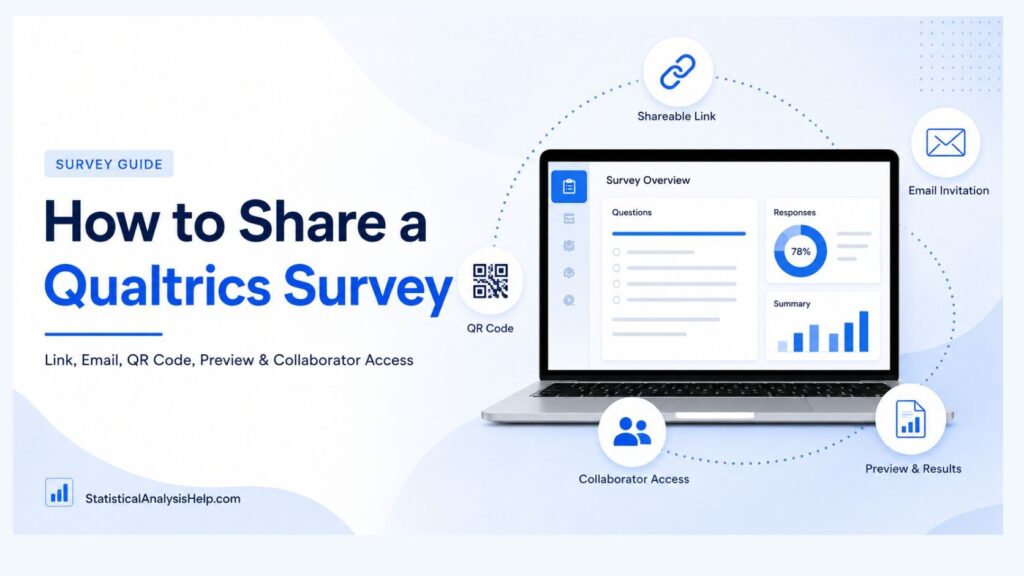
To share a live Qualtrics survey, open your project, select Distributions, choose Anonymous Link, and click Copy Survey Link. You can then send the link through email, WhatsApp, social media, a website, or another communication channel.
However, this is only one way to share a Qualtrics survey. The correct method depends on what you want the other person to do. You may want respondents to complete the survey, a supervisor to preview it, a colleague to edit it, or stakeholders to view the results.
How to Share a Qualtrics Survey Link
Follow these steps to share a standard Qualtrics survey link:
- Log in to your Qualtrics account.
- Open the survey you want to share.
- Review and test the survey.
- Select the Distributions tab.
- Click Get a single reusable link if the survey is not active.
- Select Anonymous Link if the survey is already active.
- Click Copy Survey Link.
- Test the link in a private or incognito browser.
- Send the link to your respondents.
The anonymous link is suitable when anyone with the link should be able to complete the survey. It is not the best option when you need to identify recipients, monitor individual completion, or send reminders.
Qualtrics states that the anonymous link can be pasted into an email, website, or another communication channel. Anyone who receives the link can generally access the survey unless additional restrictions have been enabled.
Important: A survey link for respondents is different from collaborator access. Sending someone the anonymous link does not allow that person to edit your survey.
Which Qualtrics Sharing Method Should You Use?
| Sharing method | Best used for | Tracks individual respondents? | Reusable? | Qualtrics account required? | Main caution |
|---|---|---|---|---|---|
| Anonymous link | Open survey distribution | No, unless identifying questions are included | Yes | No | Anyone with the link may respond |
| Qualtrics email invitation | Managed participant lists | Yes | Usually one use per recipient | No for respondents | Contact data may be connected to responses |
| Personal links | Sending tracked links through another email platform | Yes | Usually one use | No for respondents | Links should not be forwarded |
| QR code | Posters, events, handouts, and receipts | No by default | Yes | No | The QR code connects to the anonymous link |
| Social media link | Broad public recruitment | No by default | Yes | No | May create sampling bias |
| Collaborator invitation | Allowing another user to edit or review the project | Not applicable | Ongoing access | Yes | Permissions must be controlled carefully |
| Preview link | Supervisor review and survey testing | Test responses only | Yes | Depends on visibility setting | Should not be used for real participants |
| Public report link | Sharing summarized findings | Not applicable | Yes | Usually no | Confidential responses may be exposed |
How to Share a Qualtrics Survey Using an Anonymous Link
The anonymous link is the easiest way to distribute a survey to a broad group of respondents.
It is a single reusable URL that can be sent to multiple people. You can place it in an email, learning-management system, website, WhatsApp message, social-media post, document, or presentation.
Steps to copy your Qualtrics anonymous link
- Log in to Qualtrics.
- Open the survey project.
- Select the Distributions tab.
- If the survey has not been activated, select Get a single reusable link.
- Confirm that you want to activate the survey.
- If the survey is already active, select Anonymous Link.
- Click Copy Survey Link.
- Paste the link into your chosen distribution channel.
- Open the link in a private browser to confirm that it works.
Activating a survey allows it to begin collecting responses. If you make changes after activation, remember to publish the latest version before distributing the survey.
The anonymous URL normally remains the same when you edit, pause, resume, or republish the survey. This means you usually do not have to send respondents a new link every time you make a minor update.
Is a Qualtrics anonymous link completely anonymous?
Not automatically.
The anonymous link does not automatically collect a participant’s name or email address. However, Qualtrics explains that IP-address and location information based on the IP address may be recorded by default.
The survey may also ask respondents for identifying information such as:
- name
- email address
- student number
- employee ID
- telephone number
- home address
- organization
- job title
Therefore, you should not describe a survey as completely anonymous until you have checked the questions and privacy settings.
To reduce the collection of identifiable information, review the Anonymize Responses option and remove unnecessary identifying questions. Follow your university, employer, ethics committee, or institutional review board requirements when collecting research data.
Need Help Preparing Your Qualtrics Survey?
A survey should be designed with the final analysis in mind. Poor question structure, inconsistent response scales, missing codes, and weak variable planning can create serious problems after responses have been collected.
Statistical Analysis Help can assist with questionnaire structure, variable planning, response coding, statistical test selection, data cleaning, and preparation for reliable analysis.
Request a project review or see how our statistical support process works.
How to Send a Qualtrics Survey Through Email
There are two main ways to email a Qualtrics survey:
- Copy the anonymous link and paste it into a normal email.
- Send an invitation through the Qualtrics email-distribution system.
The anonymous-link method is simple, but it does not automatically show which recipient completed the survey.
Qualtrics email invitations are better when you need individual links, participant tracking, reminders, personalized messages, or contact-list information.
How to send an email invitation through Qualtrics
- Open your survey.
- Select Distributions.
- Open the Emails section.
- Click Send a message.
- Select an existing contact list or create a new one.
- Click Next.
- Review the sender name, sender email, and reply-to address.
- Write your subject line and invitation message.
- Confirm that the correct survey link appears in the message.
- Use Set up a test message to check the email.
- Click Next.
- Select Send now, Schedule for later, or another available scheduling option.
- Review the distribution details.
- Send or schedule the invitation.
Individual links are used by default in many Qualtrics email distributions. Each recipient receives a personalized link, and information from the contact list can be connected to the survey response. Individual links also make it possible to monitor completion and send reminder or thank-you messages.
Sample Qualtrics survey invitation
Subject: Invitation to Participate in a Research Survey
Dear Participant,
You are invited to participate in a research survey about [insert research topic]. The survey should take approximately [insert time] minutes to complete.
Your participation is voluntary. Please review the consent information at the beginning of the survey before deciding whether to participate.
Use the link below to begin:
[Insert Qualtrics survey link]
Please complete the survey by [insert closing date].
Thank you for considering this request.
Kind regards,
[Researcher’s name]
[Institution or department]
[Contact information]
Do not forward an individual survey invitation unless the researcher has confirmed that the link can be shared. Individual links are generally created for one specific recipient.
How to Create and Share Personal Qualtrics Links
Personal links are useful when you want Qualtrics to generate unique links but prefer to send them through Gmail, Outlook, a customer-management system, or another email platform.
Each personal link is associated with a contact in your Qualtrics mailing list.
Steps to generate personal links
- Create or upload a contact list in Qualtrics.
- Open your survey.
- Select Distributions.
- Open the Personal Links section.
- Select Generate Links.
- Click Select Contacts.
- Choose the correct contact list or segment.
- Select the recipients.
- Set the link-expiration period.
- Click Generate Links.
- Download the generated spreadsheet.
- Match each link with the correct recipient.
- Distribute the links through your preferred email system.
The downloaded spreadsheet includes contact information and a unique survey link for each selected person. Qualtrics states that personal links have the same basic one-use functionality as individual links created through the Qualtrics mailer.
Anonymous links versus personal links
| Feature | Anonymous link | Personal link |
|---|---|---|
| Same link for everyone | Yes | No |
| Unique link per recipient | No | Yes |
| Tracks contact-list information | No by default | Yes |
| Can usually be reused | Yes | No |
| Suitable for public posting | Yes | No |
| Supports recipient-level tracking | Limited | Yes |
| Safe to forward | Generally, if open access is intended | No |
Personal links should not be forwarded between participants. Once an individual link has been used, it may become invalid for another respondent.
How to Share a Qualtrics Survey Using a QR Code
A QR code is helpful when respondents will access your survey from a phone.
It can be placed on:
- posters
- event displays
- classroom handouts
- conference materials
- presentation slides
- receipts
- product packaging
- waiting-room signs
- feedback cards
- restaurant tables
Steps to download a Qualtrics QR code
- Open the survey.
- Select Distributions.
- Open the QR Code section.
- Click Download QR Code.
- Save the PNG file.
- Scan the code with at least two mobile devices.
- Add the code to your printed or digital material.
Qualtrics QR codes direct respondents to the survey’s anonymous link. The destination does not normally change when the survey is updated.
QR-code best practices
Use a high-resolution version and maintain enough empty space around the code. Do not stretch, crop, blur, or distort it.
Place a short explanation beside the QR code, such as:
Scan to complete our five-minute customer feedback survey.
You should also include:
- the survey purpose
- the estimated completion time
- eligibility requirements
- the survey closing date
- a written link as a backup
- researcher or organization contact details
Always test the final printed version. A code that works on a computer screen may become difficult to scan when printed too small.
How to Share a Qualtrics Survey on WhatsApp or Social Media
You can share the anonymous link through:
- X
- Slack
- Microsoft Teams
- SMS
- online communities
- student portals
- university learning platforms
Copy the anonymous link from the Distributions tab and paste it into your message or post.
Example social-media survey message
We are inviting eligible participants to complete a short research survey about [topic].
The survey takes approximately [time] minutes and closes on [date].
Eligibility: [brief eligibility requirements]
Participate here: [survey link]
For questions about the study, contact [researcher or institution].
Be careful about sampling bias
Posting a survey publicly does not guarantee a representative sample.
The people who notice and choose to complete a public survey may differ from the wider population you want to study. A publicly shared link may also be accessed by people who do not meet your eligibility criteria.
Consider adding a screening question at the beginning of the survey and state your eligibility requirements clearly in the invitation.
Qualtrics can record the social-media source of responses through the Q_SocialSource embedded-data field when the appropriate distribution setup is used.
How to Add a Qualtrics Survey to a Website
The simplest method is to add a button or text link to your website.
For example:
Button text: Take Our Survey
Supporting text: Help us improve by completing this five-minute survey.
Link the button to your Qualtrics anonymous URL.
Before publishing the page, check:
- whether the survey works on mobile devices
- whether the survey opens in the same or a new tab
- whether consent information is visible
- whether the website privacy notice is appropriate
- whether the button is accessible by keyboard
- whether the survey link works in different browsers
- whether the survey is open to the intended audience
Some organizations may also embed surveys within webpages, depending on their Qualtrics license, security settings, and website configuration. Test embedded surveys carefully because cross-domain controls, mobile sizing, browser restrictions, and consent requirements may affect the respondent experience.
How to Share a Qualtrics Survey With Another User for Editing
Sending someone the anonymous link does not give them permission to edit your survey.
To allow another Qualtrics user to edit, review, distribute, or analyze the project, use the collaboration feature.
Steps to invite a Qualtrics collaborator
- Open the survey project.
- Select the Survey tab.
- Click Tools.
- Select Collaborate.
- Enter the person’s name or email address.
- Add the user or group.
- Include an optional invitation message.
- Select the permissions the collaborator needs.
- Click Save.
You can also locate the project on the Projects page, open its dropdown menu, and select Collaborate.
Qualtrics allows the project owner to control permissions instead of giving every collaborator full access. Available permissions can cover survey viewing, editing, result access, data downloads, activation, copying, and distribution.
Common collaboration permissions
View Survey
Allows the person to view the survey structure without necessarily editing it.
Edit
Allows access to survey-building functions. More detailed permissions may control whether the person can edit questions, survey flow, translations, blocks, or survey settings.
View Reports
Allows access to results and reports. Additional controls may limit access to restricted information or data downloads.
Activate or Deactivate
Allows the collaborator to start, pause, or resume response collection.
Distribute
Allows access to the Distributions tab.
Copy
Allows the collaborator to make a copy of the project where permitted.
Grant only the permissions the collaborator actually needs. A supervisor reviewing question wording may not need permission to download respondent data or distribute the survey.
Why is the Collaborate option missing?
The option may be unavailable because:
- you are not the project owner
- your organization has disabled collaboration
- your account lacks the required permission
- external collaboration is restricted
- you are using the wrong institutional Qualtrics account
- the project belongs to another user
Only the survey owner can normally invite new collaborators. Contact your Qualtrics brand administrator when collaboration permissions are unavailable.
How to Share a Qualtrics Survey Without Publishing It
Use a preview link when you want someone to test or review a survey before live data collection begins.
Preview links are useful for:
- supervisor feedback
- client approval
- ethics review
- question testing
- checking display logic
- checking skip logic
- testing required responses
- mobile-device testing
- proofreading
How to share a preview link
- Open the Survey tab.
- Select Preview.
- Click Share Preview.
- Choose the preview visibility.
- Select Brand Internal Only for users in your organization, or Public where external access is appropriate.
- Copy the preview link.
- Click Save.
- Send the link to the reviewer.
New and existing preview links may be restricted to the Qualtrics brand by default. A public setting allows anyone with the preview URL to access it without belonging to your organization.
Do not distribute a preview link to real participants as the live data-collection link.
Preview mode contains testing functions that real respondents should not access. Preview responses may also be marked differently in the dataset and should not be treated automatically as valid study responses.
How to Share Qualtrics Survey Results
There are several ways to share results, depending on the audience.
Give a collaborator access to results
Invite the person as a collaborator and enable the necessary results permissions.
This is suitable when a supervisor, analyst, colleague, or research partner needs to review the data inside Qualtrics.
Export the results
You can export results and provide the appropriate file to an authorized recipient.
Common formats may include:
- Excel
- CSV
- SPSS
- PDF reports
- charts or presentation slides
Remove unnecessary identifying information before sharing exported files.
Share a published report
Depending on your Qualtrics setup, you may be able to publish a report and share its generated URL.
Before sharing a report, check:
- whether a passcode is needed
- whether the report contains names or email addresses
- whether IP addresses are displayed
- whether open-ended comments identify respondents
- whether small subgroup results could reveal individuals
- whether restricted data are included
- whether public sharing is permitted by your institution
Do not publish confidential, sensitive, medical, educational, employee, or personally identifiable data through an unrestricted link.
For help moving from exported responses to meaningful findings, review our guide on how to analyze survey data.
Privacy and Security Settings to Check Before Sharing
Before distributing your survey, review the security settings carefully.
Survey access
Available to anyone permits people with the anonymous or individual link to access the survey.
Invitation only restricts access to respondents who receive an individual link through an email invitation or personal-link distribution.
When invitation-only access is enabled, someone opening the anonymous link may see a message stating that the survey can only be taken by invitation.
Anonymize responses
Consider this setting when IP addresses and location data should not be recorded.
Make sure the questionnaire itself does not ask for identifying information if participants have been promised anonymity.
Password protection
You may add a general password when you want to use an anonymous link while limiting access to a particular group.
Do not publish the password beside the survey link on a public webpage.
Prevent multiple submissions
This setting can place a browser cookie that discourages repeated submissions from the same browser.
It is not a perfect identity-verification system because a person may clear cookies, change browsers, or use another device.
Individual links
Use individual or personal links when each participant should have a unique, trackable URL.
Closing the survey
Pause response collection or set the appropriate availability period when the study has ended.
Sensitive embedded data
Check whether names, email addresses, IDs, departments, locations, or other sensitive contact-list fields are being stored with responses.
Collaborator permissions
Do not provide result-download or restricted-data permissions to people who only need to review survey questions.
Why Is My Qualtrics Survey Link Not Working?
| Problem | Likely cause | Solution |
|---|---|---|
| Survey has not been activated | The project is still in draft mode | Activate the survey through Distributions or publish it |
| Recent changes are missing | The updated version was not published | Publish the latest survey changes |
| “Invitation only” message appears | Anonymous access has been disabled | Change access to Available to anyone or send individual links |
| Survey says it is closed | Response collection is paused | Resume response collection |
| Link opens an older survey | Browser caching or unpublished changes | Publish changes and test in a private window |
| Personal link is invalid | It has already been used | Generate or send a new individual link |
| Personal link has expired | Its distribution-expiration period ended | Create a new link or extend future expiration settings |
| Preview link requests login | Visibility is Brand Internal Only | Change preview visibility to Public where appropriate |
| Collaborator cannot find the project | Wrong account or invitation issue | Log in through the correct institutional Qualtrics portal |
| Collaborate option is missing | User is not the owner or lacks permission | Contact the project owner or brand administrator |
| Collaborator sees limited tabs | Insufficient collaboration permissions | Review and update the user’s permissions |
| Shared project does not open | Browser pop-up blocker interferes | Allow pop-ups temporarily for Qualtrics |
| Respondent cannot retake the survey | Multiple-submission prevention is enabled | Review the setting or issue an individual link |
| Password screen appears | Password protection is enabled | Provide the password securely or disable the setting |
| Survey link was copied incorrectly | Part of the URL is missing | Copy the complete URL again from Distributions |
Qualtrics notes that individual links may fail after use or expiration, while browser cookies can prevent additional anonymous responses when the multiple-submission setting is enabled.
Best Practices Before Sharing a Qualtrics Survey
Complete the following checks before distributing your survey:
- Proofread every question.
- Check spelling, grammar, and punctuation.
- Test display logic and skip logic.
- Test required questions and validation rules.
- Complete the survey as different respondent types.
- Test the survey on desktop and mobile.
- Confirm the consent language.
- Check the eligibility questions.
- Verify the estimated completion time.
- Confirm the survey closing date.
- Test anonymous and individual links separately.
- Review IP-address and anonymity settings.
- Confirm collaborator permissions.
- Check that personal links match the correct recipients.
- Prepare the data-analysis plan.
- Save a backup copy of the survey.
- Avoid making major question changes after data collection begins.
Planning the analysis before sharing the survey helps ensure that every question has a clear purpose. It also reduces problems with coding, missing categories, scale construction, reliability analysis, and hypothesis testing.
What to Do After Collecting Qualtrics Responses
Collecting responses is not the end of a survey project.
The exported dataset may still require:
- variable naming
- value labels
- duplicate-response review
- incomplete-response screening
- missing-data assessment
- reverse coding
- Likert-scale scoring
- composite-variable creation
- reliability testing
- descriptive statistics
- hypothesis testing
- correlation
- regression
- group comparisons
- factor analysis
- charts and tables
- results interpretation
Before analysis, preserve the original export and create a separate working copy. Our guide on how to clean data in SPSS explains how to review missing values, coding problems, duplicates, outliers, labels, and variable settings.
You can then use SPSS data analysis help for coding, statistical testing, output interpretation, and reporting.
Collected Your Responses but Unsure What Comes Next?
Statistical Analysis Help supports survey projects involving:
- data cleaning
- questionnaire coding
- Likert-scale analysis
- Cronbach’s alpha
- descriptive statistics
- t tests and ANOVA
- chi-square analysis
- correlation
- regression
- factor analysis
- results interpretation
- tables and charts
- dissertation results writing
Explore our survey data analysis help or view our statistical analysis pricing.
How Much Does Qualtrics Survey Help Cost?
The cost depends on the work your project requires.
Pricing may be affected by:
- survey length
- question structure
- display and skip logic
- number of variables
- condition of the exported dataset
- amount of data cleaning required
- statistical methods
- academic level
- reporting requirements
- deadline
A short survey requiring basic descriptive statistics will have a different scope from a doctoral research project requiring data cleaning, reliability analysis, factor analysis, regression, and complete results interpretation.
No price should be confirmed until the survey, dataset, instructions, and deadline have been reviewed.
You can review the pricing process or contact a statistician for a custom quote.
Frequently Asked Questions
How do I share a Qualtrics survey link?
Open the survey, select Distributions, choose Anonymous Link, and click Copy Survey Link. Test the link in a private browser before sending it to respondents. Use an individual or personal link instead when you need recipient-level tracking.
Do I need to publish a Qualtrics survey before sharing it?
A survey must be active to collect live responses. If the survey has not been activated, selecting the single reusable link option can activate it. Changes made after activation should be published before respondents receive the survey.
How do I share a Qualtrics survey with another user?
Open the survey, select Tools, choose Collaborate, enter the user’s name or email address, choose their permissions, and save the invitation. The person normally needs a Qualtrics account to collaborate.
Can someone edit my Qualtrics survey without my password?
Yes. Use the collaboration feature instead of sharing your login credentials. You can control whether the user can edit questions, view results, download data, distribute the survey, or activate response collection.
How do I share a Qualtrics survey without publishing it?
Use the preview feature. Open the Survey tab, select Preview, click Share Preview, choose the appropriate visibility, and copy the preview URL. Preview links are for testing and review rather than live data collection.
What is the difference between an anonymous link and a personal link?
An anonymous link is one reusable URL that can be sent to multiple respondents. A personal link is unique to a particular contact, generally works once, and can connect contact-list information to the resulting response.
Can I send a Qualtrics survey through Gmail or Outlook?
Yes. You can copy the anonymous link into a normal email. You can also generate personal links, download the spreadsheet, and send each recipient their unique link through Gmail, Outlook, or another mailing system.
How do I create a QR code for a Qualtrics survey?
Open the survey, select Distributions, choose QR Code, and click Download QR Code. Test the PNG with multiple mobile devices before placing it on posters, handouts, receipts, or event materials.
Why does my survey say it can only be taken by invitation?
The survey is probably set to Invitation Only. Change the access setting to Available to anyone when you want to use an anonymous link, or send respondents individual invitations or personal links.
Can respondents complete an anonymous Qualtrics survey more than once?
The anonymous link is reusable by default. The Prevent Multiple Submissions setting can discourage repeat responses through a browser cookie, but it cannot guarantee that the same person will never respond from another browser or device.
How do I share Qualtrics survey results?
You can invite a collaborator with result-viewing permission, export the dataset or report, or publish a shareable report where supported. Remove confidential information and review privacy requirements before sharing results.
Why can’t I see the Collaborate option?
You may not own the project, or your organization may have disabled collaboration for your account. Contact the project owner or Qualtrics brand administrator to review your permissions.
Can an external user collaborate on my Qualtrics survey?
External collaboration may be possible, but it depends on organizational settings and account permissions. Use the collaborator’s email address and limit access to the functions they genuinely need.
How do I stop collecting Qualtrics responses?
Pause response collection or change the survey’s availability settings. Test the respondent link afterward to confirm that new submissions are no longer being accepted.
Conclusion
Learning how to share a Qualtrics survey begins with identifying what the recipient needs to do.
Use an anonymous link when you want a reusable URL for respondents. Use Qualtrics email invitations or personal links when you need individual tracking. Use Collaborate when another user needs editing or results access. Use a preview link when someone needs to test the survey before launch. Use a protected report or controlled export when stakeholders need to review the results.
Before sharing any link, test the survey, review the access settings, confirm the privacy requirements, and make sure the questionnaire is ready for analysis.
Get Expert Help With Your Qualtrics Survey Data
Send us your questionnaire, exported Qualtrics dataset, research questions, methodology, deadline, and supervisor instructions.
We can help clean the data, code responses, select suitable statistical tests, run the analysis, interpret the results, and prepare clear tables and written findings.