
Published by StatisticalAnalysisHelp.com
If you’ve ever needed to compare test scores before and after training, patient measurements before and after treatment, or employee output before and after a new process, you’ve probably run into the same question: how do you actually test whether that change is statistically significant?
The answer, in most of these situations, is a paired samples t-test, and the good news is you don’t need SPSS, R, or SAS to run one. Microsoft Excel can perform a paired t-test in just a few clicks, either through the built-in Data Analysis ToolPak or the T.TEST function.
This guide walks you through everything you need to know about how to perform a paired t-test in Excel: what it is, when to use it, how to check its assumptions, how to run it two different ways, and, most importantly, how to correctly interpret and report your results. By the end, you’ll be able to take a real dataset, run the test, and understand exactly what the output means.
If at any point your data situation is more complicated than a straightforward before and after comparison, our team at StatisticalAnalysisHelp.com offers confidential, expert support for exactly these kinds of analyses, covered in more detail below.
What Is a Paired T-Test?
A paired t-test (also called a paired samples t-test, dependent samples t-test, or repeated measures t-test) is a statistical procedure used to determine whether the mean difference between two related sets of measurements is statistically significant.
The key word is related. Unlike an independent samples t-test, which compares two separate, unconnected groups of people, a paired t-test compares two measurements taken from the same subjects or from matched pairs of subjects. Each observation in one group has a natural counterpart in the other group.
You’ll often see this design described with slightly different terminology:
- Paired: each data point in Group 1 is linked to exactly one data point in Group 2.
- Dependent: the two sets of scores are not independent of each other, because they come from the same source.
- Repeated measures: the same variable is measured more than once on the same subject, typically at two different time points.
A paired t-test works by calculating the difference between each pair of observations, then testing whether the average of those differences is significantly different from zero. If it is, that suggests a real change occurred rather than one explained by random variation.
Simple example: A physical therapist measures grip strength in 12 patients before starting a six week rehabilitation program, then measures grip strength again after the program ends. Because each post treatment score is linked to a specific patient’s pre treatment score, this is a textbook case for a paired t-test.
This is different from an independent samples t-test, which would be appropriate if the therapist instead compared grip strength between two different groups of patients, one that received the rehab program and one that didn’t.
When Should You Use a Paired T-Test?
A paired t-test is the right choice whenever your two sets of measurements are connected to each other by design. Common situations include:
- Before and after studies, measuring the same variable before and after an intervention, treatment, or event.
- Pre test and post test designs, common in education and training research.
- Repeated measurements on the same participants, such as blood pressure recorded at two clinic visits.
- Matched pair studies, where participants are deliberately paired based on shared characteristics (age, weight, diagnosis) even though they aren’t the same person.
- Two related experimental conditions, such as measuring reaction time under two different lighting conditions with the same participants.
A paired t-test should not be used when your two groups of data are unrelated, for example, comparing the test scores of Class A against Class B, where the students are entirely different people. In that case, an independent samples t-test is appropriate instead.
| Research situation | Appropriate test |
|---|---|
| Same participants measured twice | Paired t-test |
| Two separate groups | Independent samples t-test |
| More than two related measurements | Repeated measures ANOVA |
| Related data that violate parametric assumptions | Wilcoxon signed-rank test |
If you’re not sure which design fits your study, our hypothesis testing help service can walk you through choosing the correct test before you touch a spreadsheet.
Paired T-Test Assumptions
Like any parametric test, the paired t-test relies on a few underlying assumptions. Checking these before you run the test helps ensure your results are trustworthy.
- The dependent variable should be continuous. Measurements like scores, weight, blood pressure, or time are appropriate; categorical data are not.
- The two observations must be related. Each pair must come from the same subject or a deliberately matched pair, which is what makes it a paired test in the first place.
- The pairs must be independent of other pairs. One participant’s results shouldn’t influence another’s.
- The difference scores should be approximately normally distributed. This is the assumption that actually matters for a paired t-test, not the normality of each original variable on its own.
- The difference scores should not contain serious outliers, since extreme values can distort the mean difference and the resulting t statistic.
A useful clarification: many beginners assume both the “before” and “after” variables individually need to be normally distributed. In reality, it’s the differences between each pair that need to be roughly normal. You can check this visually with a histogram or boxplot of the difference scores, or more formally with a normality test such as Shapiro Wilk.
For small samples, a mild departure from normality usually isn’t fatal to the test, but larger or more obvious violations, especially combined with outliers, are worth taking seriously.
If you’re unsure whether your data meet these assumptions, our descriptive statistics services can check this for you before you commit to a paired t-test, saving you from having to redo the analysis later.
Example Dataset for a Paired T-Test in Excel
To make this tutorial concrete, we’ll use the same sample dataset throughout. Imagine 12 participants completed a training program, and we recorded their performance scores before and after.
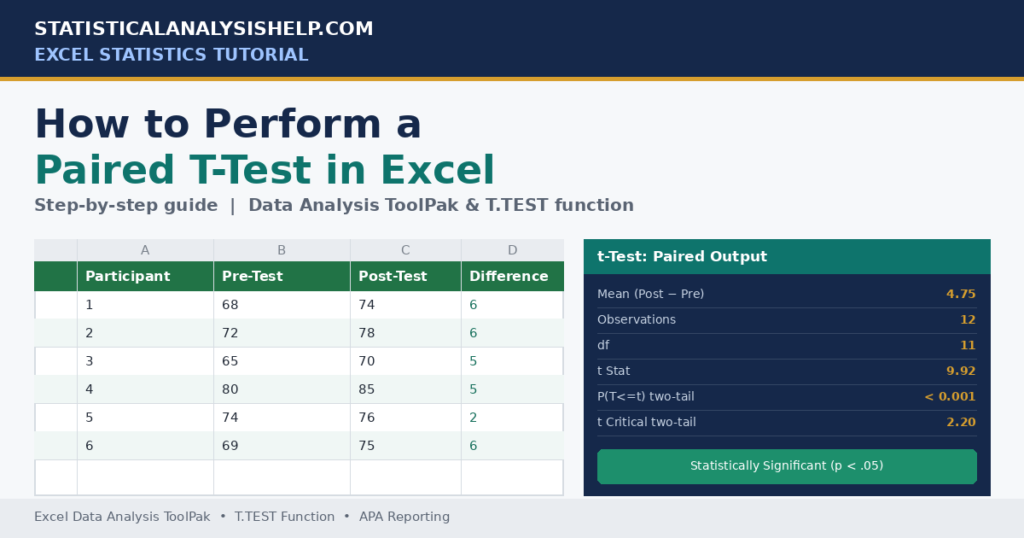
| Participant | Pre-Test Score | Post-Test Score | Difference (Post minus Pre) |
|---|---|---|---|
| 1 | 68 | 74 | 6 |
| 2 | 72 | 78 | 6 |
| 3 | 65 | 70 | 5 |
| 4 | 80 | 85 | 5 |
| 5 | 74 | 76 | 2 |
| 6 | 69 | 75 | 6 |
| 7 | 77 | 82 | 5 |
| 8 | 71 | 73 | 2 |
| 9 | 66 | 72 | 6 |
| 10 | 75 | 79 | 4 |
| 11 | 70 | 77 | 7 |
| 12 | 73 | 76 | 3 |
You can copy this table directly into Excel, with Participant ID in column A, Pre-Test Score in column B, Post-Test Score in column C, and Difference in column D.
How to Enable the Data Analysis ToolPak in Excel
Before running a paired t-test with the ToolPak, you need to make sure it’s turned on. This is a one time setup.
On Windows:
Click File, then Options. Select Add-ins from the left hand menu. At the bottom, next to “Manage,” select Excel Add-ins and click Go. Check the box next to Analysis ToolPak and click OK. You should now see a Data Analysis button on the Data tab.
On Mac:
Click Tools, then Excel Add-ins. Check the box next to Analysis ToolPak. Click OK. The Data Analysis option will now appear under the Data tab.
If “Data Analysis” still doesn’t appear, close and reopen Excel after enabling the add in. If it’s still missing, your Excel installation may need a repair, or the add in may not be available in your specific Microsoft 365 plan, in which case the T.TEST function (covered below) is a reliable alternative that requires no setup at all.
How to Perform a Paired T-Test in Excel Using the Data Analysis ToolPak
Once the ToolPak is enabled, running the paired samples t-test in Excel only takes a few steps.
Enter and organize your paired data, as shown in the example table above, with clear column headers (for example, “Pre-Test,” “Post-Test”). Click the Data tab on the ribbon. Click Data Analysis on the far right. In the dialog box, scroll down and select “t-Test: Paired Two Sample for Means,” then click OK. For Variable 1 Range, select your Pre-Test column, including the header (for example, B1:B13). For Variable 2 Range, select your Post-Test column, including the header (for example, C1:C13). Leave Hypothesized Mean Difference at 0, which reflects the standard null hypothesis of no difference. Check the Labels box, since you included headers in your ranges. Set Alpha to 0.05, unless your study specifies a different significance level. Under Output options, choose a cell for the results, such as New Worksheet Ply, or a specific cell on the current sheet. Click OK.
Excel will generate an output table showing means, variance, observations, correlation, degrees of freedom, the t statistic, and both one tailed and two tailed p-values.
Troubleshooting Common Issues
- Unequal sample sizes: The ToolPak requires both variable ranges to contain the same number of values, since each row represents a pair. Check for accidental blank rows.
- Blank cells: A blank cell in the middle of a range can shift your data and break the pairing. Fill in missing values appropriately or remove that participant’s entire row from both columns.
- Text values mixed with numbers: Stray text (like “N/A”) in a numeric column will cause errors or be ignored incorrectly. Clean your data first.
- Incorrect ranges: Double check that Variable 1 and Variable 2 correspond to the correct before and after columns; reversing them flips the sign of your results.
- Missing Data Analysis button: Revisit the ToolPak setup steps above.
Every dataset has its own quirks, and a single misaligned row can quietly change your entire result. If you’d rather have a professional confirm your data is set up correctly before you interpret the output, our Excel data analysis help team can review your spreadsheet and results directly.
How to Perform a Paired T-Test Using the Excel T.TEST Function
If you prefer a formula based approach, or don’t have access to the ToolPak, Excel’s built in T.TEST function can calculate a paired t-test p-value directly.
Syntax:
=T.TEST(array1, array2, tails, type)- array1: the range containing your first set of values (for example, pre test scores).
- array2: the range containing your second set of values (for example, post test scores).
- tails: enter 1 for a one tailed test or 2 for a two tailed test.
- type: enter 1 to specify a paired t-test. (Type 2 is for independent samples with equal variance; type 3 is for independent samples with unequal variance.)
Two tailed paired t-test example:
=T.TEST(B2:B13,C2:C13,2,1)One tailed paired t-test example:
=T.TEST(B2:B13,C2:C13,1,1)Keep in mind that T.TEST returns only the p-value; it does not provide the descriptive statistics, t statistic, or degrees of freedom that the Data Analysis ToolPak output includes. Many analysts use T.TEST for a quick check and the ToolPak (or manual formulas) when they need the full picture for a report or dissertation.
One-Tailed Versus Two-Tailed Paired T-Test
Before running your test, you need to decide whether you’re testing a directional or non directional hypothesis, and this decision should be made before you look at your results, not after.
Two tailed test: Tests whether there is any difference between the two related measurements, in either direction. This is the more common and more conservative choice.
- Null hypothesis (H0): The mean difference between pre test and post test scores is equal to 0.
- Alternative hypothesis (H1): The mean difference is not equal to 0.
One tailed test: Tests whether the difference occurs in one specific direction only.
- Null hypothesis (H0): The mean post test score is less than or equal to the mean pre test score.
- Alternative hypothesis (H1): The mean post test score is greater than the mean pre test score.
A one tailed test is only appropriate when you have a strong, pre established theoretical reason to expect change in one specific direction. Choosing a one tailed test after seeing that your two tailed result narrowly missed significance is a well known methodological red flag; reviewers and instructors will often flag this as p-hacking.
How to Interpret Paired T-Test Results in Excel
The Data Analysis ToolPak output contains several rows worth understanding:
- Mean: the average of each variable (for example, average pre test score, average post test score).
- Variance: how spread out each variable’s values are.
- Observations: the number of paired data points (should match for both variables).
- Pearson Correlation: how strongly the two variables move together; paired data are often positively correlated since they come from the same subjects.
- Hypothesized Mean Difference: the value you entered, normally 0.
- df: degrees of freedom, calculated as the number of pairs minus 1.
- t Stat: the calculated t statistic for your data.
- P(T<=t) one tail: the p-value for a one tailed test.
- t Critical one tail: the critical t value for a one tailed test at your chosen alpha.
- P(T<=t) two tail: the p-value for a two tailed test.
- t Critical two tail: the critical t value for a two tailed test at your chosen alpha.
Most studies should use the two tailed p-value unless a one tailed, directional hypothesis was explicitly specified in advance.
Decision rule: If p is less than or equal to 0.05, reject the null hypothesis; there is a statistically significant difference between the two related measurements. If p is greater than 0.05, fail to reject the null hypothesis; there is not enough evidence of a significant difference.
You can also compare your t Stat to the t Critical value: if the absolute value of your t statistic exceeds the critical value, the result is significant at your chosen alpha level. Both approaches (p-value and critical value) will always lead to the same conclusion.
Interpreting Excel’s output correctly is where many students and analysts get stuck, especially when results are borderline or the correlation value looks unusual. If you want a second set of eyes on your interpretation before you write it up, our t-test analysis help service offers fast, confidential review.
Worked Paired T-Test Example in Excel
Using our 12 participant dataset from earlier, here’s what the analysis produces:
- Pre test mean: 71.67
- Post test mean: 76.42
- Mean difference: 4.75
- Standard deviation of the difference: 1.66
- Sample size (n): 12
- Degrees of freedom (df): 11
- t statistic: approximately 9.92
- Two tailed p-value: less than 0.001
Statistical decision: Since p is far below 0.05, we reject the null hypothesis.
Plain language interpretation: Participants scored significantly higher on the post test (M = 76.42) than on the pre test (M = 71.67), suggesting the training program was associated with a meaningful improvement in performance.
How to Report a Paired T-Test in APA Style
Once you have your results, you’ll typically need to report them in APA format for a paper, thesis, or dissertation.
Significant result example:
A paired samples t-test showed that post test scores (M = 76.42, SD = 4.32) were significantly higher than pre test scores (M = 71.67, SD = 4.51), t(11) = 9.92, p < .001, 95% CI [3.70, 5.80], dz = 2.86.
Non significant result example:
A paired samples t-test found no statistically significant difference between pre intervention scores (M = 71.67, SD = 4.51) and post intervention scores (M = 72.90, SD = 4.68), t(11) = 1.42, p = .18, 95% CI [0.65, 3.11], dz = 0.41.
A complete APA write up should typically include:
- Means and standard deviations for both time points
- The mean difference
- A 95% confidence interval for the difference
- The t statistic and degrees of freedom
- The p-value
- An effect size (Cohen’s dz)
If you need help formatting statistical results for a specific journal or university’s style guide, our APA results interpretation service specializes in exactly this kind of write up.
How to Calculate the Mean Difference in Excel
The difference score for each pair is the foundation of the entire paired t-test. In Excel, this is a simple subtraction:
=C2-B2This formula subtracts the pre test score (column B) from the post test score (column C). Copy it down for every row.
Direction matters. Subtracting pre test from post test (Post minus Pre) means a positive mean difference indicates improvement, while subtracting the other way (Pre minus Post) would flip the sign. Whichever direction you choose, be consistent, and clearly state it when reporting your results; this also affects the sign of your t statistic.
How to Calculate Effect Size for a Paired T-Test
A significant p-value tells you whether a difference exists, but not how large that difference is in practical terms. This is why effect size matters; statistical significance and practical importance are not the same thing, especially with larger sample sizes where even tiny differences can become “significant.”
For paired designs, the standard effect size is Cohen’s dz:
Cohen’s dz = Mean of the difference scores divided by Standard deviation of the difference scores
In Excel:
=AVERAGE(D2:D13)
=STDEV.S(D2:D13)
=AVERAGE(D2:D13)/STDEV.S(D2:D13)
General interpretation guidelines (Cohen, 1988):
- 0.20: small effect
- 0.50: medium effect
- 0.80: large effect
These thresholds are useful starting points, but context matters. A “small” effect in a clinical safety outcome might be highly meaningful, while a “large” effect in an exploratory pilot study might warrant cautious interpretation.
How to Calculate a 95% Confidence Interval for the Mean Difference
A confidence interval gives readers a sense of the range of plausible values for the true mean difference, and it’s increasingly expected alongside p-values in published research.
Step by step in Excel:
- Mean difference:
=AVERAGE(D2:D13) - Standard deviation of differences:
=STDEV.S(D2:D13) - Sample size:
=COUNT(D2:D13) - Standard error:
=STDEV.S(D2:D13)/SQRT(COUNT(D2:D13)) - Critical t value (two tailed, alpha = 0.05):
=T.INV.2T(0.05,COUNT(D2:D13)-1) - Lower confidence limit:
=AVERAGE(D2:D13)-(T.INV.2T(0.05,COUNT(D2:D13)-1)*(STDEV.S(D2:D13)/SQRT(COUNT(D2:D13)))) - Upper confidence limit:
=AVERAGE(D2:D13)+(T.INV.2T(0.05,COUNT(D2:D13)-1)*(STDEV.S(D2:D13)/SQRT(COUNT(D2:D13))))
Using our worked example, this produces a 95% CI of approximately [3.70, 5.80], meaning we can be reasonably confident the true average improvement lies somewhere in that range.
Common Mistakes When Performing a Paired T-Test in Excel
- Using an independent t-test for paired observations, which ignores the natural correlation between related measurements and can produce misleading results.
- Pairing data incorrectly, for example, sorting one column but not the other, which breaks the participant to participant link.
- Having unequal numbers of observations in the two ranges, which the ToolPak will reject.
- Ignoring missing values instead of addressing them deliberately.
- Testing the wrong hypothesis by not thinking through direction (one tailed vs. two tailed) in advance.
- Selecting a one tailed analysis after seeing the results, which undermines the validity of the test.
- Interpreting p > 0.05 as proof that no difference exists; a non significant result means insufficient evidence of a difference, not confirmation of “no effect.”
- Failing to check the distribution of difference scores before assuming the test is appropriate.
- Reporting only the p-value, without means, confidence intervals, or effect size.
- Confusing the Pearson correlation shown in the output with the statistical significance of the mean difference; they answer different questions.
- Ignoring effect size and confidence intervals, which are increasingly required by journals, advisors, and reviewers.
Paired T-Test Versus Independent T-Test
| Feature | Paired T-Test | Independent T-Test |
|---|---|---|
| Study design | Same subjects measured twice, or matched pairs | Two separate, unrelated groups |
| Participant groups | One group | Two distinct groups |
| Data structure | Two related columns of equal length | Two independent columns, possibly unequal length |
| Null hypothesis | Mean difference between paired scores = 0 | Mean of Group 1 = Mean of Group 2 |
| Example | Blood pressure before and after medication | Test scores of Class A vs. Class B |
| Excel option | t-Test: Paired Two Sample for Means | t-Test: Two-Sample Assuming Equal/Unequal Variances |
| Appropriate use | When observations are linked | When observations are independent |
Paired T-Test Versus Wilcoxon Signed-Rank Test
The paired t-test assumes the difference scores are approximately normally distributed. When that assumption is clearly violated, the Wilcoxon signed-rank test, a nonparametric alternative, may be more appropriate.
Consider the Wilcoxon test when:
- The difference scores are strongly non normal, not just mildly skewed.
- There are severe outliers that heavily distort the mean difference.
- Your outcome is ordinal rather than truly continuous (for example, a 5 point rating scale).
- You have a small sample combined with visibly questionable normality.
To be clear: minor, mild non normality does not automatically invalidate a paired t-test, especially with reasonably sized samples. The t-test is fairly robust to small deviations. The Wilcoxon test becomes the better choice specifically when violations are substantial, not simply present.
Advantages and Limitations of Performing a Paired T-Test in Excel
Advantages:
- Accessibility: most students and professionals already have Excel installed.
- Ease of use: no scripting or syntax required for the ToolPak method.
- Fast calculations: results appear instantly once ranges are selected.
- Familiar interface: spreadsheet layout is intuitive for organizing before and after data.
Limitations:
- Limited assumption diagnostics: Excel doesn’t automatically test normality or flag outliers.
- Limited visualization options compared to dedicated statistical software.
- Higher risk of manual data entry errors, especially with larger datasets.
- Less detailed output than SPSS, R, or SAS, which often include effect sizes and diagnostic plots by default.
- No automatic effect size calculation: dz must be computed manually, as shown above.
- Potential difficulty reproducing complex, multi step analyses consistently across a large project or dissertation.
Excel is a genuinely capable tool for a straightforward paired t-test, but it isn’t automatically the best tool for every statistical situation, particularly once assumption checking, effect sizes, and reporting requirements become more involved.
When to Seek Professional Statistical Analysis Help
Even a well documented tutorial can’t anticipate every dataset. Consider reaching out for professional help when:
- You’re unsure which t-test, or which statistical test entirely, fits your research design.
- Your data contain missing values, outliers, or other irregularities.
- Assumptions appear to be violated and you’re not sure whether that matters.
- You need properly APA formatted results for a paper, thesis, or dissertation.
- Your supervisor or committee is asking for effect sizes or confidence intervals you haven’t calculated before.
- You’re getting conflicting results between different tools or formulas and need help reconciling them.
- You need the analysis run in Excel, SPSS, R, SAS, Stata, or Python, or need results cross checked across platforms.
StatisticalAnalysisHelp.com offers confidential, accurate statistical support for students, researchers, healthcare professionals, and business analysts. Whether you need a single test run correctly or full dissertation data analysis support, our team can help you move from raw data to a clear, defensible result, quickly and without the guesswork. Contact our statistical analysis services to discuss your project.
Frequently Asked Questions
How do I perform a paired t-test in Excel?
Organize your before and after data in two columns, then use either the Data Analysis ToolPak’s “t-Test: Paired Two Sample for Means” tool or the T.TEST function with type = 1 to calculate the result.
Which Excel t-test option is used for paired data?
Select “t-Test: Paired Two Sample for Means” from the Data Analysis ToolPak menu. This is the only ToolPak option designed for related, dependent measurements.
What does type 1 mean in the Excel T.TEST function?
In the T.TEST function, setting type = 1 tells Excel to treat the data as paired (dependent) samples rather than independent groups.
How do I interpret the p-value from a paired t-test?
If the two tailed p-value is 0.05 or lower, the difference between your paired measurements is considered statistically significant. If it’s above 0.05, there isn’t enough evidence to conclude a real difference exists.
Should I use a one-tailed or two-tailed paired t-test?
Use a two tailed test unless you have a strong, pre established reason to expect the difference in one specific direction. The choice should be made before you see your results.
What is the null hypothesis for a paired t-test?
The null hypothesis states that the true mean difference between the two related measurements is zero, that is, no real change occurred.
Can Excel calculate a paired t-test? Yes. Excel can calculate a full paired t-test through the Data Analysis ToolPak, or a paired t-test p-value directly using the T.TEST function.
What assumptions must be met for a paired t-test?
The dependent variable should be continuous, the observations must be related, pairs must be independent of one another, and the difference scores should be roughly normally distributed without serious outliers.
What should I do if my paired data are not normally distributed?
Mild non normality is usually not a major concern, especially with moderate sample sizes. If the violation is severe, consider the Wilcoxon signed-rank test as a nonparametric alternative.
How do I report paired t-test results in APA format?
Report the means and standard deviations for both time points, the t statistic with degrees of freedom, the p-value, a 95% confidence interval, and an effect size such as Cohen’s dz.
What is the difference between a paired and independent t-test?
A paired t-test compares two related measurements from the same subjects or matched pairs, while an independent t-test compares two separate, unrelated groups.
Can I perform a paired t-test with missing data in Excel?
Not directly. The ToolPak requires equal length ranges with no gaps that break the pairing. Missing values need to be addressed (through exclusion of that pair or an appropriate imputation method) before running the test.
Conclusion
Running a paired t-test in Excel isn’t complicated once you understand what the test is actually measuring: the average difference between two related sets of scores, and whether that difference is too large to attribute to chance.
To recap the key steps:
- Confirm your two sets of measurements are genuinely paired, not independent.
- Check the assumptions, particularly the distribution of your difference scores.
- Decide on a one tailed or two tailed test before running your analysis.
- Use either the Data Analysis ToolPak or the T.TEST function to calculate your result.
- Interpret the p-value alongside your means, mean difference, and confidence interval, not in isolation.
- Report effect size (Cohen’s dz) so readers understand the practical size of the change, not just its statistical significance.
Excel makes the mechanics of a paired t-test genuinely accessible, but correct setup, assumption checking, and interpretation still require care. If you’d like a second opinion on your data, your results, or how to write them up for a paper, thesis, or dissertation, the team at StatisticalAnalysisHelp.com is ready to help, confidentially, accurately, and on your timeline. Request customized statistical analysis support today.
